5 Canva Hacks Beginners Miss
We may earn a small commission for purchases made through affiliate links in this post. For more information go to our Privacy Policy.
When you open Canva for the first time, it feels like magic. Drag. Drop. Done. But here’s the thing—most beginners stop there. They never peek under the hood to see the little tricks that make designing not just faster, but way more polished.
If you’re ready to stop making “Pinterest board practice projects” and actually create designs that look professional, these are the Canva hacks you don’t want to miss.
1. The “T” Shortcut for Text

Forget clicking around the toolbar. Just press T on your keyboard and—boom—text box appears.
It sounds simple, but speed is everything when you’re designing. The less you fumble with menus, the more you stay in flow.
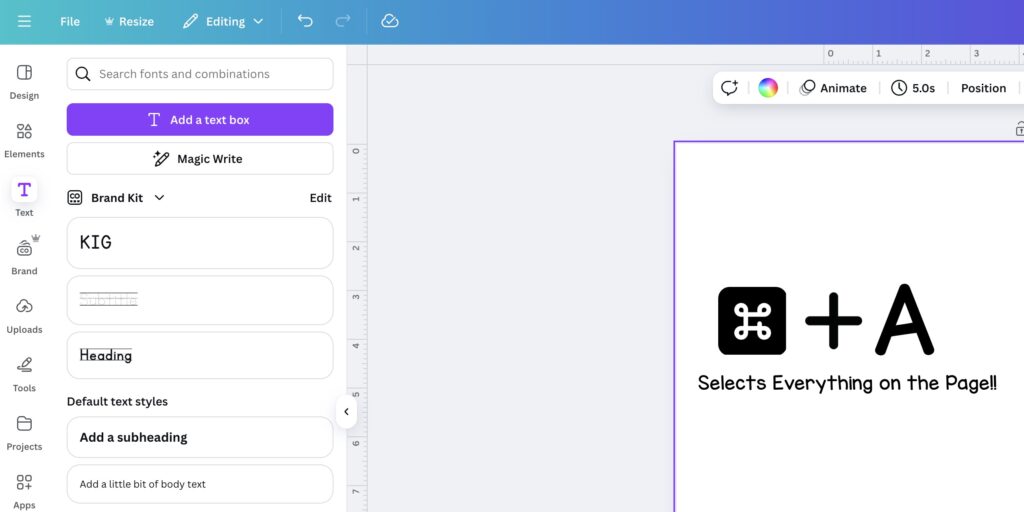
Pro tip: Combine it with CMD/CTRL + A to select all text and quickly change font, size, or color in one go.
2. Magic Resize = One Design, Every Platform
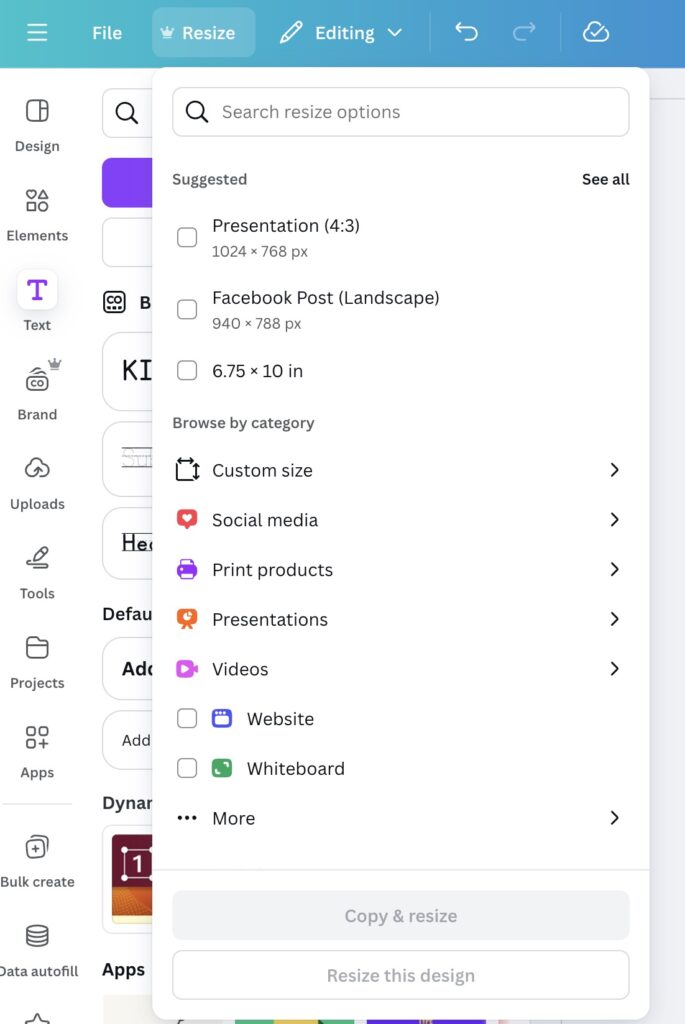
Beginners waste hours recreating the same design for Instagram, Pinterest, and Facebook. Don’t.
Click Resize (top toolbar) → pick the platforms you need → Canva does the heavy lifting.
Yes, you’ll need to adjust spacing a bit. But resizing in seconds beats redesigning from scratch every time.
NOTE: The crown next to menu items, including “resize” is for PRO accounts only. If you have an EDUCATION account…these are available to you with your free account.
3. Use Frames for Polished Images
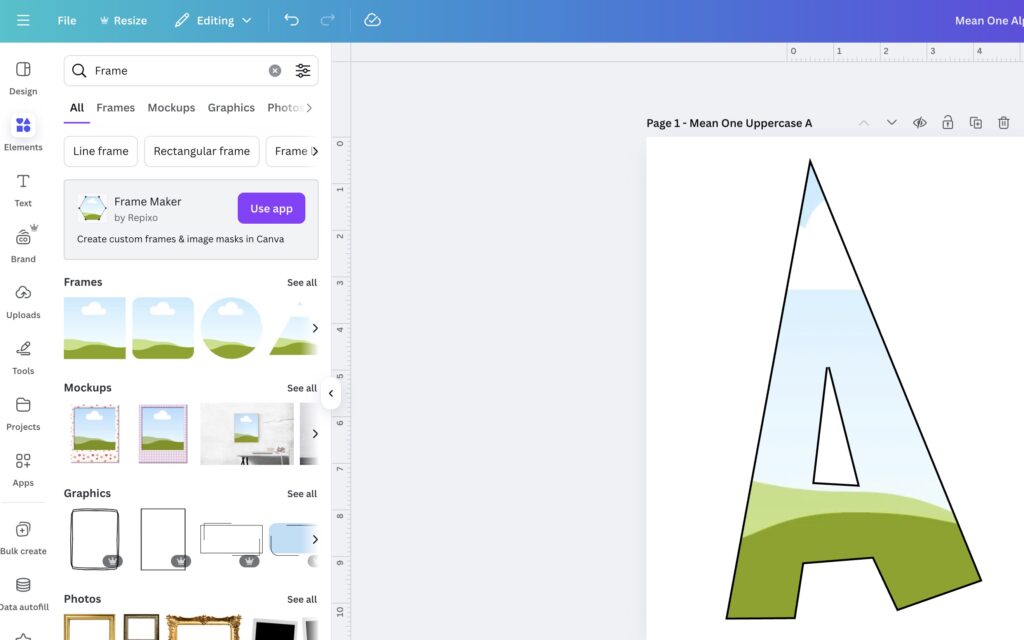
Most people drag photos straight onto a page. That’s fine—until you want it to look good.
Drop your image into a frame (search “frames” in Elements). Circles, letters, even funky shapes. (up your game past beginner even more with custom letter frames like “The Mean One“)
Your design instantly feels intentional instead of “clip-art chaos.”
4. Lock Elements So Nothing Shifts
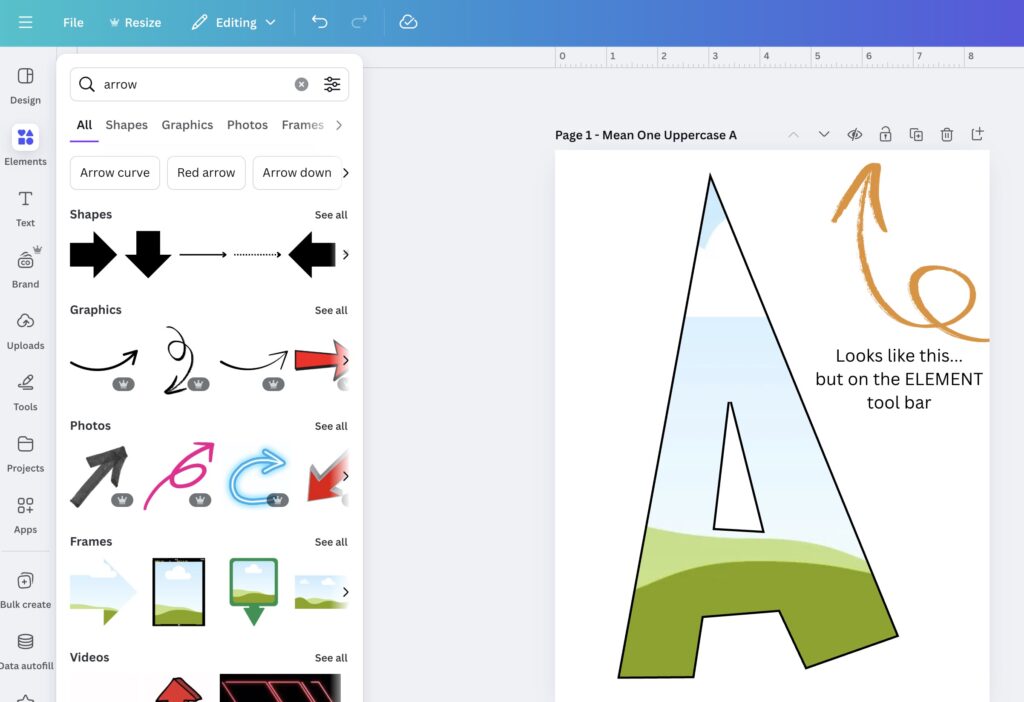
Ever tried to move a text box and accidentally dragged your background halfway off the page? Rage-inducing.
Select the background → click the lock icon in the toolbar.
Now nothing budges unless you want it to. Instant sanity saver.
5. The Secret Search Bar Codes
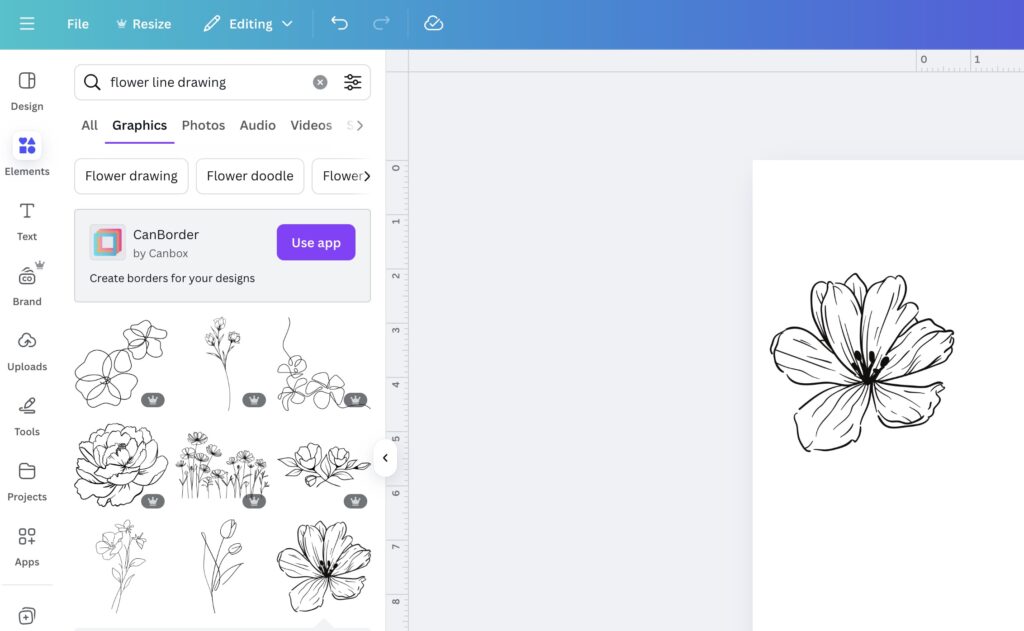
Typing “flower” in Canva gives you the same stock daisies as everyone else.
Instead, use search filters and codes:
- “Flower line drawing” → minimalist vibes
- “Flower transparent” → cut-out look
- “Flower gradient” → modern and bold
Adding those descriptors uncovers graphics most beginners never even see.
BONUS TIP:
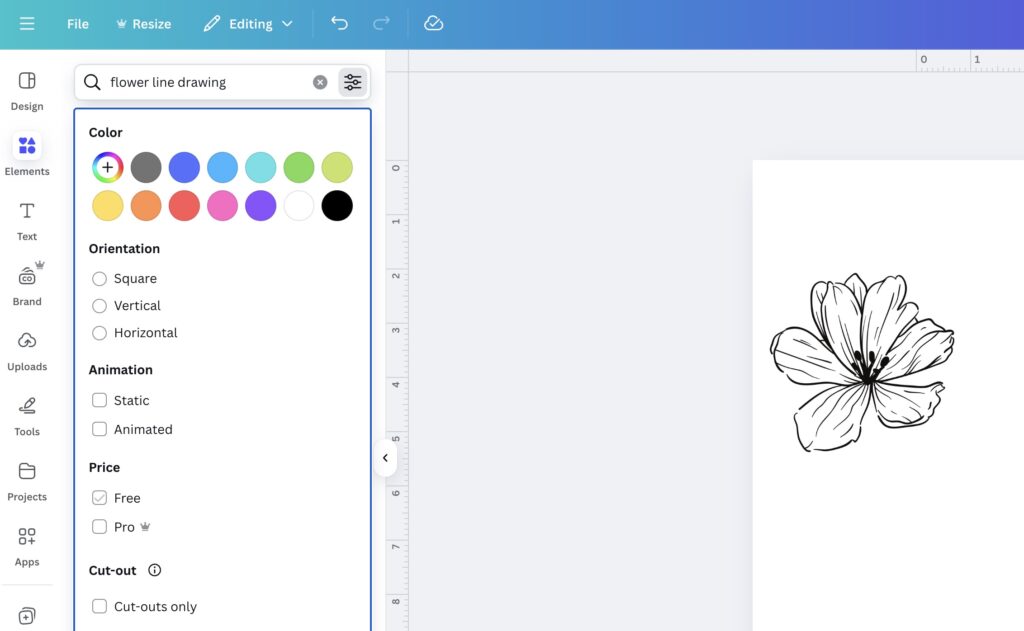
Don’t have Canva pro or the education account? You can search elements and fonts that are FREE. This way, you don’t finish your project and go to download but it won’t let you because you owe $3.
Psst. The PRO account is worth it and you will save the $14.99 in just a few projects.
Final Thoughts
The beauty of Canva is that it feels easy. But if you stick to the basics, you’ll never break out of beginner mode. Master these five hacks, and suddenly your designs feel sharper, faster, and way more fun.
And let’s be honest—once you discover how powerful Canva really is, that little “just one more design” habit kicks in hard.